How to Access VPS via VNC in SolusVM 2

You can access your VPS via VNC in an emergency, such as when a firewall blocks your IP, the Internet connection on the VPS is not working, and when you cannot access SSH. Also, you can use VNC for OS installation/reinstallation.


1. Log in to your SolusVM 2 Control Panel.


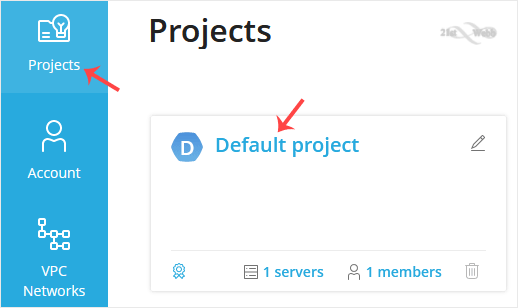
2. Under Projects, click on the project that contains your VPS.
solusvm2-vps-status.gif


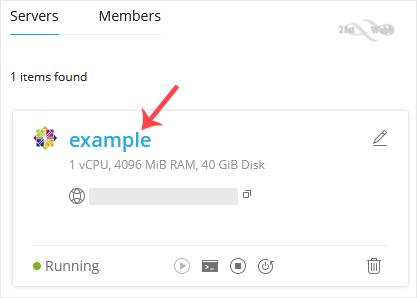
3. Click on the appropriate VPS.
solusvm2-vps-select.gif


4. Click on the VNC dialog icon.
solusvm2-vnc-start.gif

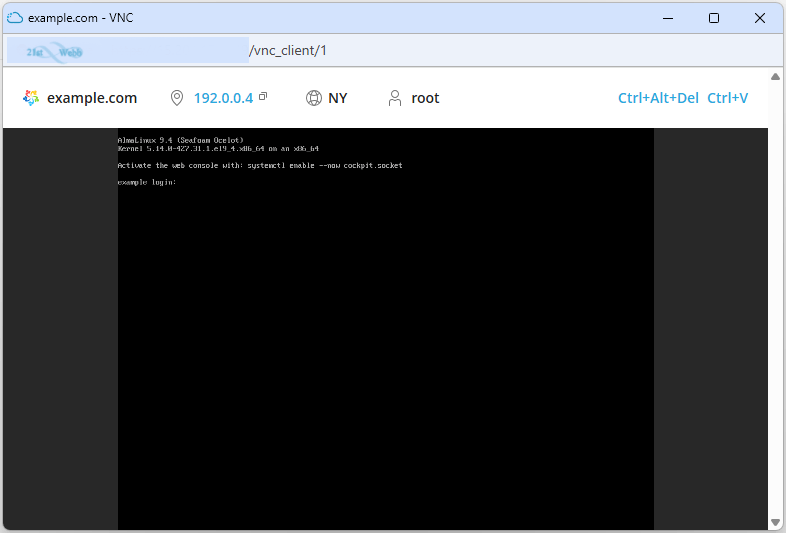
5. The VNC Area will resemble the following screenshot:
solusvm2-vnc-area.gif

Now you know how to use VNC to access your VPS in SolusVM 2.

  • 0 Users Found This Useful
Was this answer helpful?

Related Articles

How to Start/Boot Your VPS in SolusVM 2

If your VPS is down/offline, you can start it using SolusVM 2.1. Log in to your SolusVM 2 Control...

How to Reinstall an OS Using SolusVM 2

You can easily Install/Reinstall the operating system using SolusVM 2. However, note that this...

How to Install an OS from ISO in SolusVM 2

Installing an OS from an ISO image allows customization, such as partition editing and other...

How to Change Hostname in SolusVM 2

You can change the hostname in SolusVM 2.1. Log in to your SolusVM 2 Control Panel. 2. Under...

How to Change the VPS Root/Admin Password in SolusVM 2

You can change the root/admin password of your VPS Operating System using SolusVM 2.1. Log in to...

Powered by WHMCompleteSolution