
How to Enable ionCube Loader Using CloudLinux Selector in cPanel

You can use CloudLinux Selector to enable ionCube Loader in cPanel.


1. Log in to your cPanel account.


2. In the Software section, click on Select PHP Version.

cp-cl-select-php-version-icon.gif


3. Under the Account Global Settings, go to the Extensions tab.
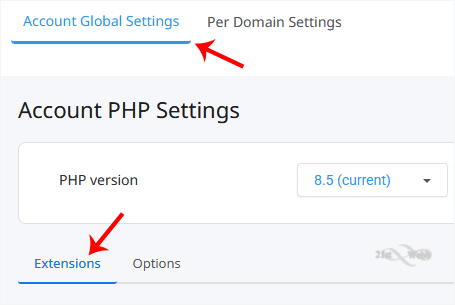
cl-account-global-settings-ext-tab.gif

Note: If it shows an error related to the Native PHP version, change to a non-Native PHP version first.


4. Checkmark the ioncube_loader. Once enabled, it will display a success message.
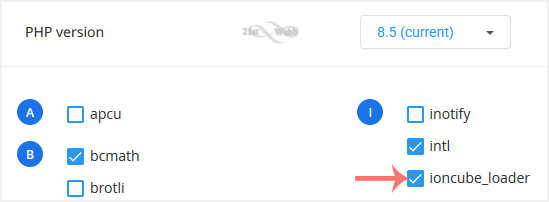
cl-enable-ioncubeloader.gif


The message will read that the module ionCube Loader is saved.

cl-ioncube-loader-enabled.gif


You have successfully enabled ionCube Loader using the CloudLinux Selector in cPanel.


Note: This tutorial covers enabling Ioncube Loader on all domains. To enable it for an individual domain, go to Per Domain Settings, click on the Per Domain option, and then select ioncube_loader for the domain you wish to enable it on.

  • 0 Users Found This Useful
Was this answer helpful?

Related Articles

How to Enable the GD Extension of PHP Using CloudLinux Selector in cPanel

You can use CloudLinux Selector to enable GD extension in PHP via cPanel.   1. Log in to your...

How to Enable or Disable PHP Extensions Using the CloudLinux Selector in cPanel

You can use CloudLinux Selector to enable or disable available PHP extensions in cPanel.   1....

How to Enable the Mailparse Extension of PHP Using CloudLinux Selector in cPanel

You can use CloudLinux Selector to enable the Mailparse extension in PHP via cPanel.   1. Log...

How to Enable or Disable PHP's allow_url_fopen Using CloudLinux Selector in cPanel

You can use CloudLinux Selector to enable or disable the allow_url_fopen directive in cPanel....

How to Enable or Disable PHP's display_errors via CloudLinux Selector in cPanel

Sometimes, we need to debug PHP. Hence, we need to enable display_errors or disable them for...

Powered by WHMCompleteSolution