How to Change the Password of a Plesk Account

Follow these steps to change your Plesk account password.


1. Log in to your Plesk account.


2. Click on Account from the Sidebar Menu.
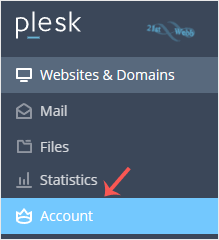
plesk-click-on-account-client.gif


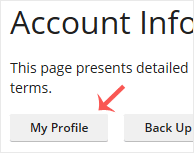
3. Click on My Profile.

plesk-myprofile-client.gif


4. Enter your old password. Then, in the password field, enter your new password or click Generate to create one.
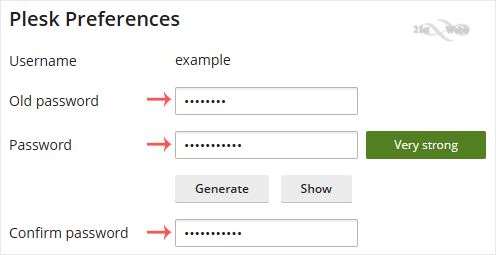
plesk-password-change-enter.gif


5. Click OK to confirm the changes.


You can now log in with the new password.

  • 0 Users Found This Useful
Was this answer helpful?

Related Articles

How to Log in to Plesk

A tutorial on how to access the Plesk Control Panel.   After you place an order and make a...

How to Edit a File in the Plesk File Manager

Learn how to edit a file directly in the Plesk File Manager. This is useful for making quick...

How to Reset a Plesk's Account Password

Follow these steps to reset your Plesk account password.   1. Open your Plesk login URL.   2....

How to Update a Plesk Account's Email Address

Follow these steps to change your Plesk contact email address.   1. Log in to your Plesk...

How to Change the Language of a Plesk Panel

Follow these steps to change the language of the Plesk Panel.   1. Log in to your Plesk...

Powered by WHMCompleteSolution