
cPanel can automatically install an SSL on your domain within a few hours. However, even after 24 hours, if an SSL is not installed on your domain, first check the last log of the AutoSSL from cPanel > SSL/TLS Status > Certificate Status.
If it shows any errors, try to fix them or open a ticket with us. If it does not show errors, it means AutoSSL did not automatically include your domain. It will help if you force cPanel to run an AutoSSL on your domain and install an SSL Certificate. You can run AutoSSL on your domain in the following way:
1. Log in to your cPanel account.
2. In the Security section, click on SSL/TLS Certificates.

3. Under Issue a Certificate, choose the domain for which you need an SSL certificate.

4. Scroll down and click Continue.
5. Now click the Let's Encrypt Certificate button.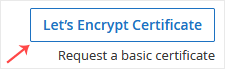
6. Read and accept the Let's Encrypt terms, then click Continue.
If everything is fine, the SSL will be automatically installed on your domain within the next few hours. If it displays an error, then check it and send that message to us so we can resolve this for you.
Note: SSL installation is fully automated. Sometimes, AutoSSL takes up to 24 hours to verify the domain.
