How to Retrieve a CSR from cPanel

Have you generated a Certificate Signing Request (CSR) from cPanel but lost it? Then, you can retrieve it. Follow this tutorial only if you have previously generated a CSR from cPanel.


1. Log in to your cPanel account.


2. In the Security section, click on SSL/TLS Certificates.

ssl-tls-icon.gif


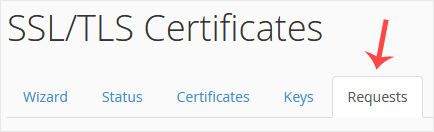
3. Click on the Requests tab.
cp-ssl-requests.gif


4. Under Certificate Signing Requests on Server, you can see previously generated CSR.


5. Click on Edit, which is located under the Action option.
ssl-csr-retrive-edit-cpanel.gif


6. Copy the CSR code, located under the Encoded CSR. Please, copy it from/to:

-----BEGIN CERTIFICATE REQUEST-----

to

-----END CERTIFICATE REQUEST-----

csr-code-copy.gif


You have retrieved your Certificate Signing Request (CSR) from cPanel. You can now use it to request or reissue an SSL certificate for your domain.

  • 0 Users Found This Useful
Was this answer helpful?

Related Articles

How to Generate a Certificate Signing Request - CSR in cPanel

Obtaining a certificate from a trusted SSL provider requires a Certificate Signing Request (CSR)....

How to Remove a CSR code in cPanel

You can remove the CSR code, which is no longer needed. Please, keep a backup of the CSR code for...

How to Install an SSL on Your Domain Using AutoSSL in cPanel

cPanel can automatically install an SSL on your domain within a few hours. However, even after 24...

How to force redirect over HTTPS

In order to force your web traffic to use HTTPS, edit the codes in the .htaccess file. For...

Powered by WHMCompleteSolution