
How to Add "A Record" in cPanel


The "A record" is a DNS record used for pointing a domain or a subdomain to an IP address. You can add A Record using the cPanel's Zone Editor option.


1. Log in to your cPanel account.


2. In the Domains section, click on Zone Editor.

cpanel-dnszone-icon.gif

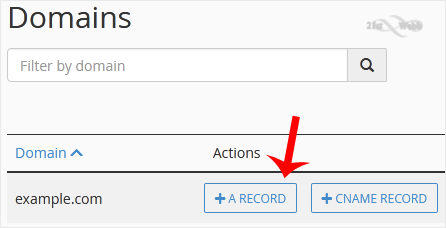
3. Under Domains, you can see many options below Actions.
cpanel-a-record-domains-list.gif


4.
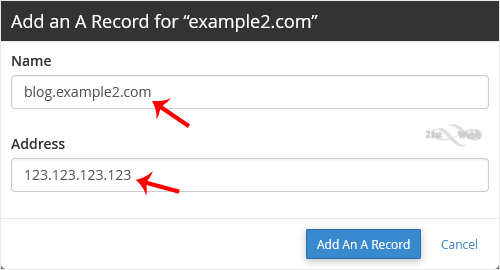
Click on A Record, and a pop-up box will open. Please, enter the required details in it.
Name: Enter the name you want to add. For example, enter blog and the cPanel will automatically add a domain name such as blog.example.com.
Address: Enter the IP Address of the server.

cpanel-a-record-add-domain.gif


5. Now click on Add an A Record.


Congratulations, you have successfully added A Record. The DNS propagation can take up to 24 hours.


Note: It may take anywhere from 12 to 24 hours for the changes to take effect worldwide.

  • 0 Users Found This Useful
Was this answer helpful?

Related Articles

How to Reset cPanel's Account Password

If you have access to your cPanel account, follow these steps to reset your password: 1. Log in...

How to Change the PHP Version on Your Domain in cPanel

Some software requires a different version of PHP. You can switch the PHP versions using cPanel....

How to Reset the PHP Version to the Default Version in cPanel

If you want to reset the PHP version to the default version, follow these instructions:1. Log in...

How to Set the PHP Version per Domain in cPanel

In this article, we will demonstrate how to use cPanel to set different PHP versions for...

How to Set the PHP Version per Directory in cPanel

Do you want to use different PHP versions per directory? You can do this using cPanel and the dot...

Powered by WHMCompleteSolution