
How to Setup a cPanel Email Account in Thunderbird

Thunderbird is a friendly email client software for managing your email. You can set up a cPanel email account with Thunderbird and receive/send the email.

1. Open Thunderbird.
mozilla-thunderbird-cpanel-icon.gif


2. Click on the menu icon located on the right side of the screen and choose New Account. The drop-down menu will populate with new options.
mozilla-thunderbird-menu.gif


3. Click on Email.
thunderbird-existing-mail-account.gif


4. On the Account Setup page, enter your name and full email address, then click Continue.
thunderbird-mail-setup-account-cpanel.gif


5. It may take a few minutes to configure your email account. After that, click on Continue.
thunderbird-email-setup-done.gif


6.
Enter your email account password, then click Continue.
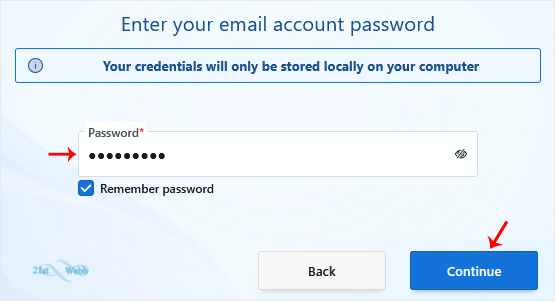
thunderbird-mail-setup-account-password.gif


Congratulations, your email is set up successfully. You can now manage your email through Thunderbird.

  • 0 Users Found This Useful
Was this answer helpful?

Related Articles

How to Reply to Email in Mozilla Thunderbird

You can reply to an email using Thunderbird instead of the cPanel Webmail. 1. Open...

How to Check for New Email in Thunderbird

Thunderbird is an email client software. You can work with it in the following way. 1. Open...

How to Send an Email Using Thunderbird

You can send an email using Thunderbird. It is quite straightforward as you do not need to log in...

How to Forward an Email in Thunderbird

You can forward an email to other email accounts using Thunderbird. 1. Open Thunderbird. 2....

How to Delete Email Messages in Thunderbird

You can easily remove email in Thunderbird.   If you use the POP email protocol, the email will...

Powered by WHMCompleteSolution