
How to Enable BoxTrapper in cPanel

BoxTrapper requires all email senders not on your Whitelist to respond to verification emails. It protects you from spam.

If you want to get rid of unwanted emails, enable Boxtrapper either on all emails or just selected emails and configure it.


1. Log in to your cPanel Account,

2. In the Email section, click on BoxTrapper.


3. On the BoxTrapper's page, you see a list of your emails under the Account heading and the status of BoxTrapper under the Status heading. Choose Manage.
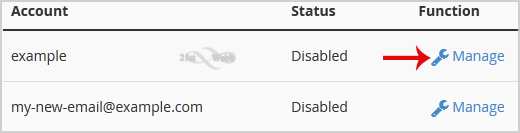

4. On the BoxTrapper Manage page, if the status shows Disabled, click Enable.


You have enabled BoxTrapper in cPanel, and it will now help filter unwanted emails from your inbox.

  • 0 Users Found This Useful
Was this answer helpful?

Related Articles

How to Enable Apache SpamAssassin and SpamBox in cPanel

Apache SpamAssassin is a mail filter that identifies spam. An intelligent email filter uses...

How to Create a "User Level Email Filter" in cPanel

It is hard to stop spam email entirely but you can filter it, discard it, deliver it to the...

How to Edit "User Level Email Filter" in cPanel

Need to change how emails are filtered for a specific email account? Editing a user level email...

How to Delete "User Level Email Filter" in cPanel

If an email filter is no longer needed for a specific account, you can easily delete the user...

How to Create an Account Level/Global Email Filter in cPanel to Fight Spam

It's hard to stop spam email entirely but you can filter it, discard it, deliver it to the...

Powered by WHMCompleteSolution