
How to Edit (Dot)htaccess File in the cPanel File Manager

The dot htaccess file controls important website settings like redirects and security. Follow this guide to edit your dot htaccess file using the cPanel File Manager.


1. Log in to your cPanel account.


2. In the Files section, click on File Manager.


3. Navigate to the directory where your dot htaccess file is located. To edit the .htaccess file of your root directory, navigate to the public_html directory.

4. If the .htaccess file is not visible, click Settings in the top right corner of the File Manager. In the settings window, check the box next to Show Hidden Files (Dotfiles) and click Save. The .htaccess file should now be visible. If it is still not there, you can create a new one.


5. Right-click on the dot htaccess file and then Edit in the Context Menu.


6. In a new window box, click on Edit.
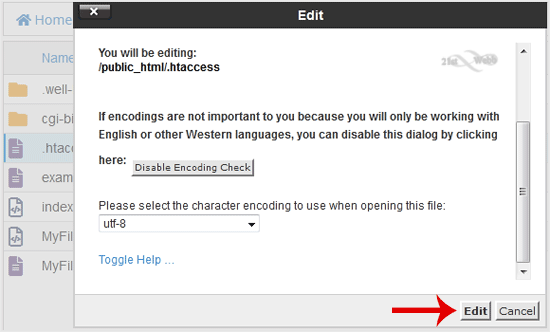

7. Make changes to your dot htaccess file and click on Save Changes.


We hope this tutorial is helpful to you.

  • 0 Users Found This Useful
Was this answer helpful?

Related Articles

How to Reset cPanel's Account Password

If you have access to your cPanel account, follow these steps to reset your password: 1. Log in...

How to Change the PHP Version on Your Domain in cPanel

Some software requires a different version of PHP. You can switch the PHP versions using cPanel....

How to Reset the PHP Version to the Default Version in cPanel

If you want to reset the PHP version to the default version, follow these instructions:1. Log in...

How to Set the PHP Version per Domain in cPanel

In this article, we will demonstrate how to use cPanel to set different PHP versions for...

How to Set the PHP Version per Directory in cPanel

Do you want to use different PHP versions per directory? You can do this using cPanel and the dot...

Powered by WHMCompleteSolution